 BlueprintReview
Search
Find where a variable, function, event or node is used: in the open Blueprint with Find, or in every Blueprint of a folder with Find in Blueprints. Both search what the editor's searches do: node titles, pin names and default values, comments, variables, functions, components and their types.
Search the open Blueprint
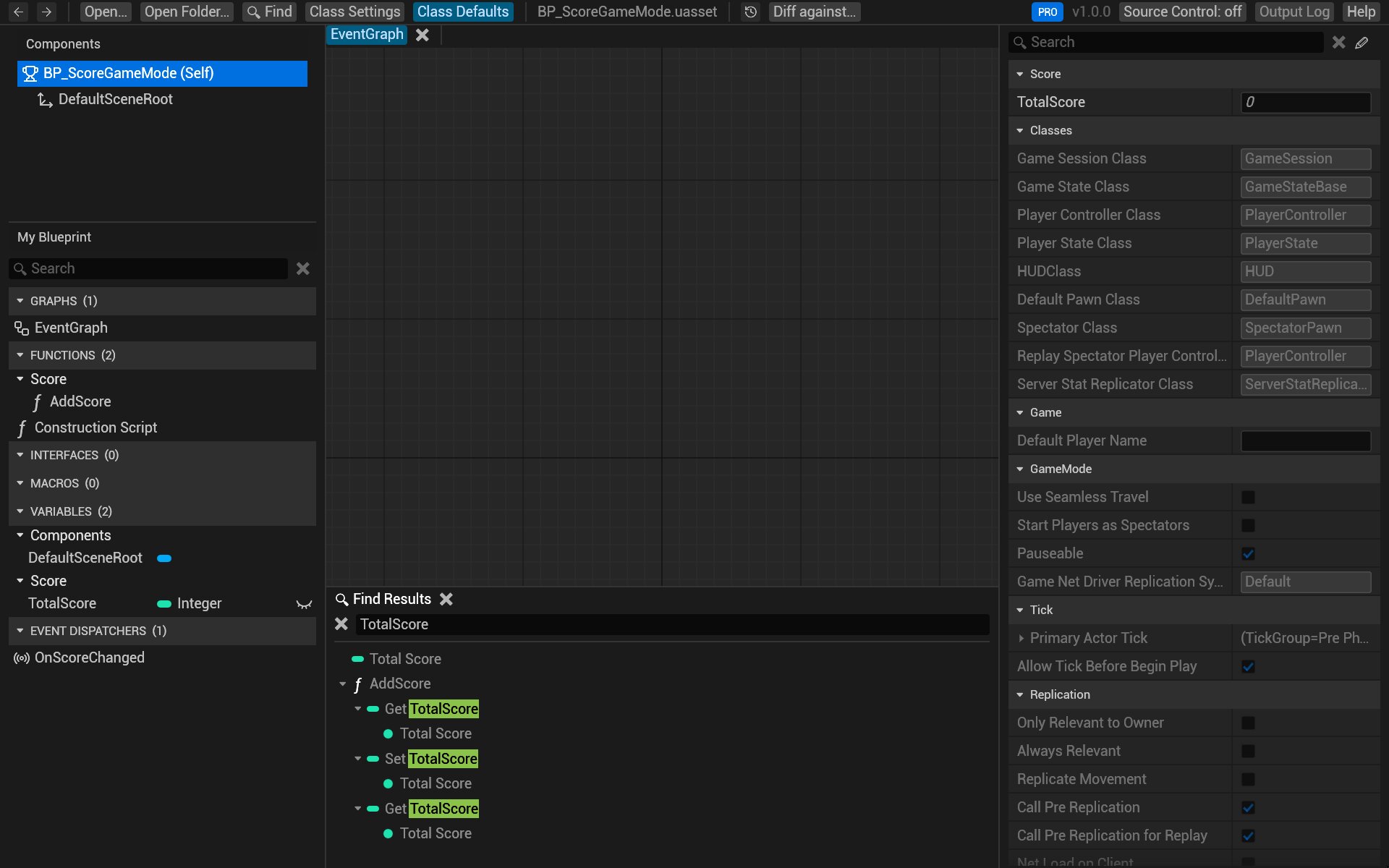
- Press Ctrl+F, or click Find at the top left. The Find Results panel opens at the bottom, with its search box focused.
- Type what you're looking for and press Enter.
- The results are a tree: graph, then node, then the pin or value that matched. Click the arrows to open and close it.
- Double-click a result to jump to it: its graph opens and the node is selected and framed.
To find where something in My Blueprint is used (a variable, a function, an event, a component), right-click it and choose Find References: Find Results opens with its name searched.
Search every Blueprint in a folder
With a folder open (Open and browse):
- Press Ctrl+Shift+F, or click Find in Blueprints at the top left.
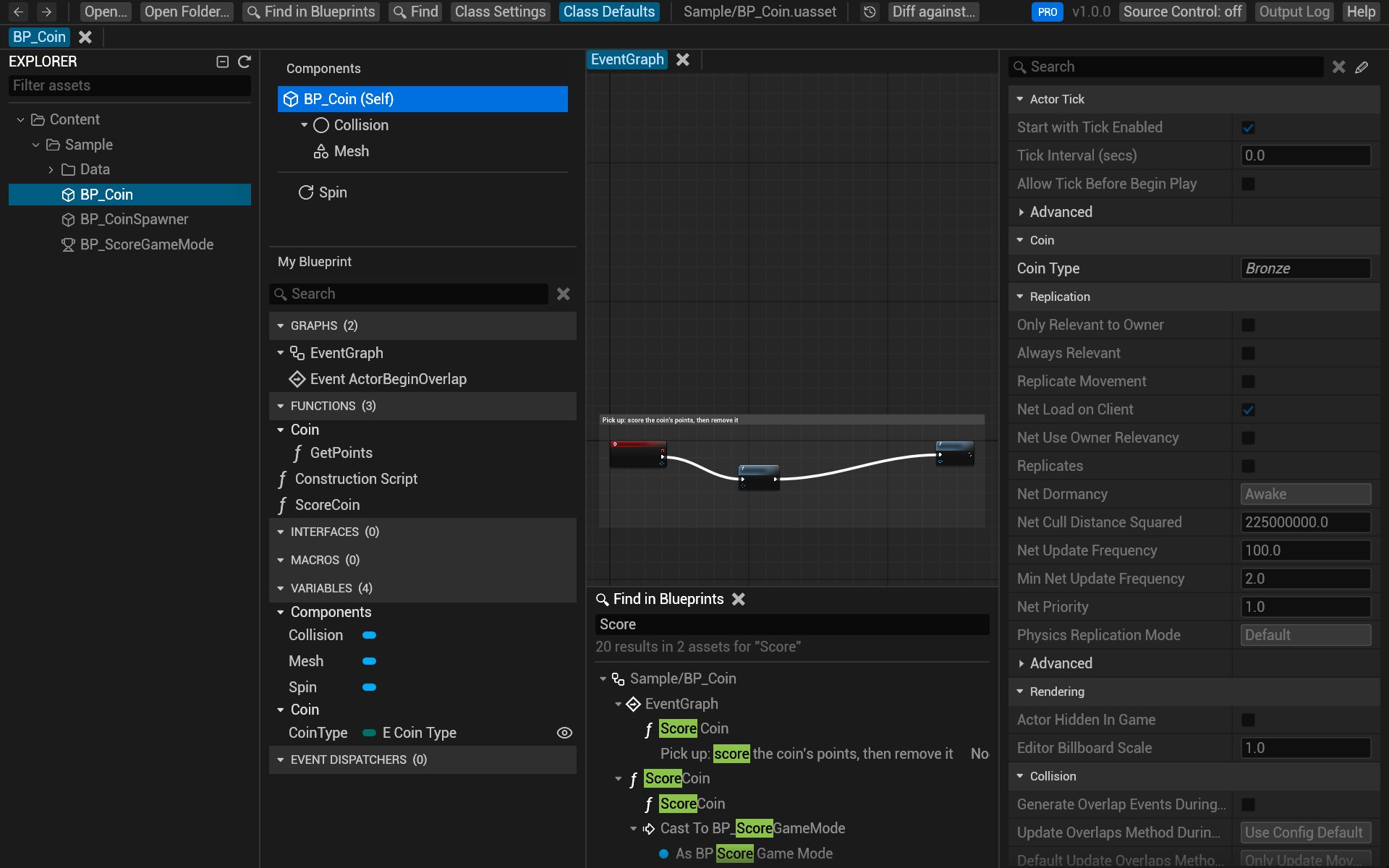
- Type and press Enter. The results are grouped by asset; the first ones show while the rest of the folder is still being searched.
- Double-click a result to open its asset at that node.
The folder is read once when you open it, in the background, so even large projects answer in well under a second.
How a query matches
- Case doesn't matter, and spaces in names are ignored:
spawnradiusfinds Spawn Radius. - A word matches any part of a name:
Scorefinds TotalScore, AddScore and OnScoreChanged. - Several words must all match the same item:
Set Scorefinds Set TotalScore nodes. - Quotes keep words together as one phrase:
"Set TotalScore".
Try it on the sample
- Open
Content/Sample/BP_ScoreGameMode.uasset. - Press Ctrl+F, type
TotalScoreand press Enter: the results list the variable and the nodes in AddScore that get and set it. - Open the sample's
Contentfolder instead, press Ctrl+Shift+F and searchScore: the results includeBP_Coin's ScoreCoin function, which callsAddScorein the game mode.