 BlueprintReview
Compare two versions
See exactly what changed between two versions of a Blueprint, laid out like the editor's Blueprint Diff window: the old version on the left, the new on the right, and every difference listed in the editor's wording. Enums, structs and data tables compare too, as tables.
Pro: the interactive diff on this page is part of Pro (and the trial). Lite shows the same diff as a report.
Steps
- Open the newer version of the asset.
- Click Diff against… in the toolbar and pick the older version's file.
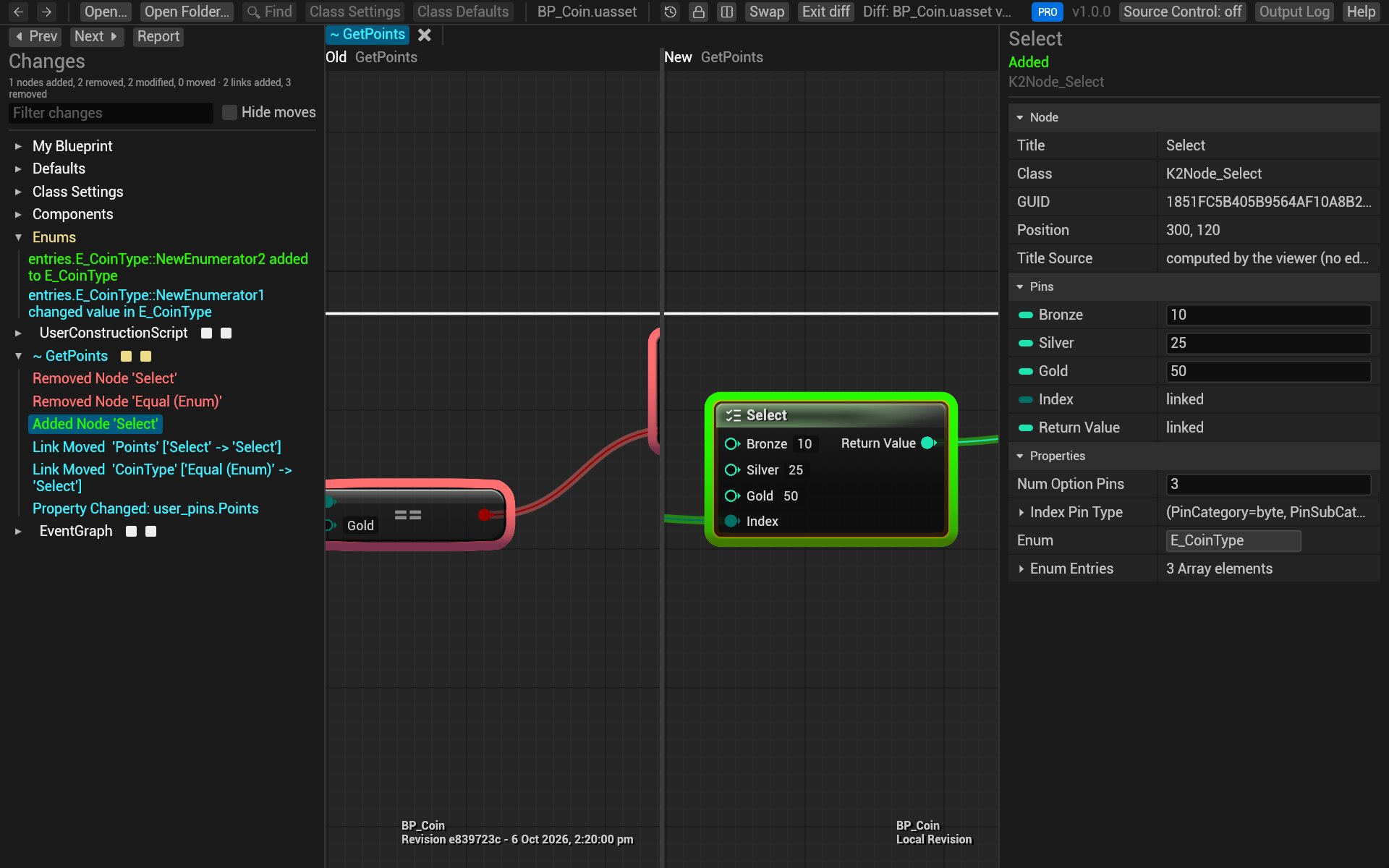
- The diff view opens:
- Changes on the left lists the differences, by category: My Blueprint (variables), Defaults, Class Settings, Components, then each graph. A category with differences is yellow.
- The graphs show the old version on the left and the new one on the right.
- Details on the right shows the selected node's changes, old and new value side by side.
- Click a row in Changes to jump to it: its graph opens and the node is framed on both sides. Prev and Next step through every difference in turn.
From git or Perforce you don't need to find the files yourself: see Review changes in git and Review changes in Perforce.
Reading the diff
| Colour | Means |
|---|---|
| Green | added |
| Red | removed |
| Cyan | changed: a property, a pin's default, its wires |
| Grey-violet | moved only |
A change to a node outlines the node; a change to one pin (a default value, a new wire) outlines just the pin. Added and removed wires get a glow in the same colours. Zoomed out far, unchanged nodes fade so the changes stand out.
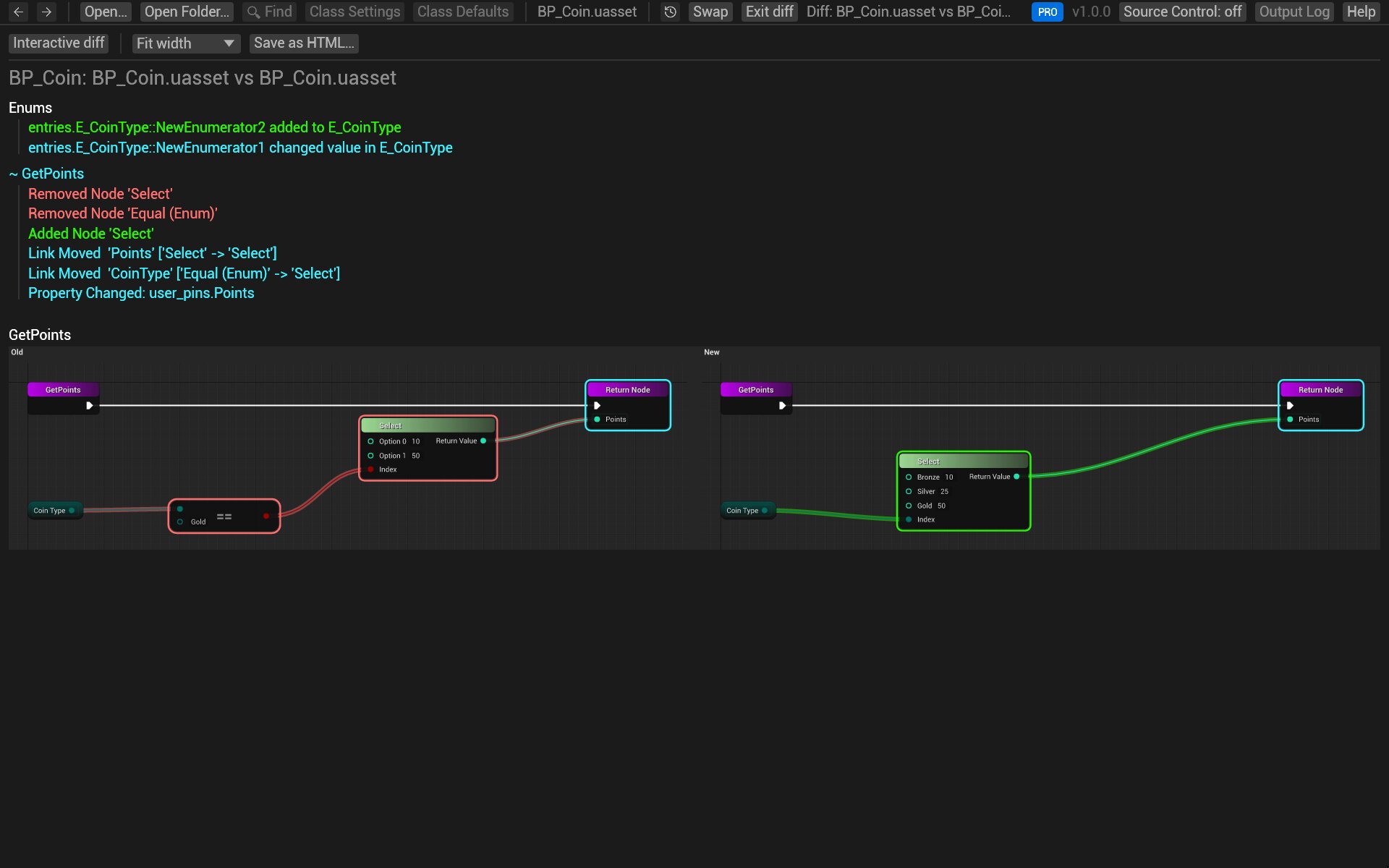
The rows use the editor's words, for example Added Node 'Select', Pin Default 'Duration' ['1.0' -> '2.0']
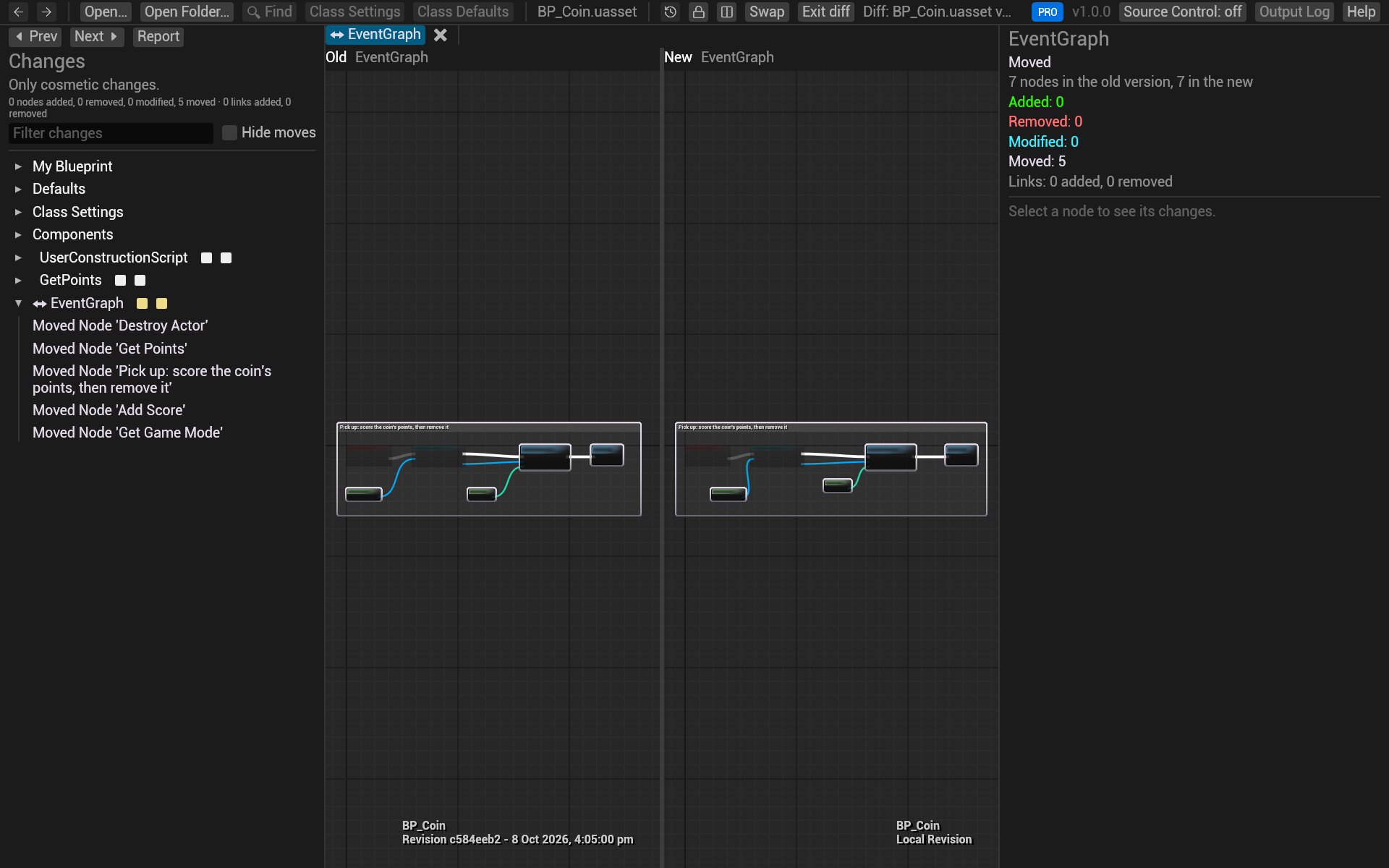
or Renamed Variable Score to TotalScore. Hover a row for more detail.
Moves and re-routes aren't changes
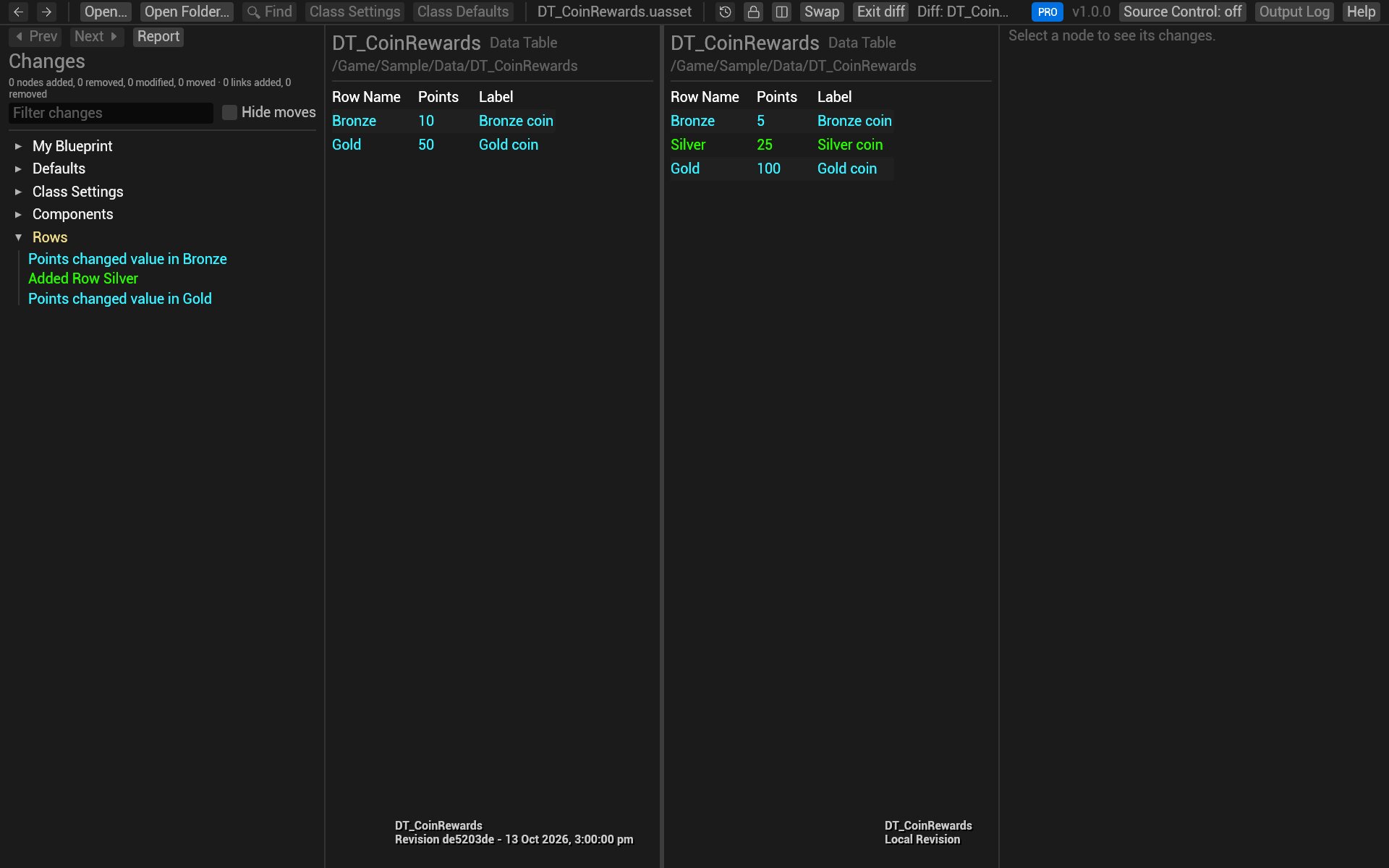
Moving nodes, re-routing a wire through reroute nodes, or changing a comment's colour doesn't change what a Blueprint does. These rows are listed separately (as Moved Node, and greyed out), and the summary counts them apart. Tick Hide moves to leave them out entirely.
Variables, defaults and components
Click a row under My Blueprint, Defaults, Class Settings or Components and the graphs make way for both versions' details side by side, rows lined up, the differing ones highlighted. A renamed variable is matched with its old self, so you see Renamed Variable and the nodes that follow it, not a removal and an addition.
Data tables, enums and structs
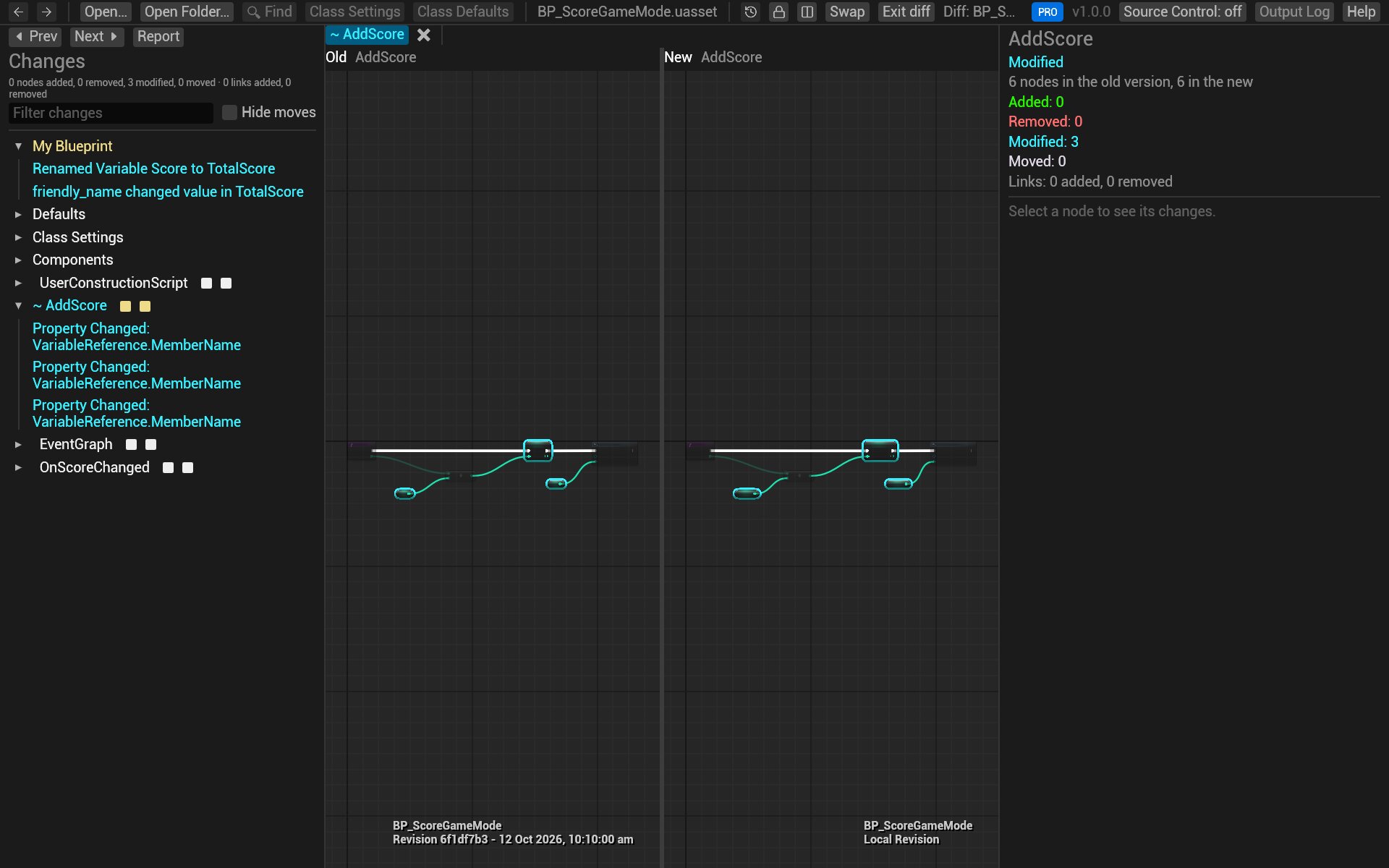
These show as tables, old and new side by side: added rows in green, changed values in cyan.
The toolbar
| Button | What it does |
|---|---|
| Padlock (Lock/Unlock) | Locked, both sides pan and zoom together; unlocked, each moves on its own |
| Split | Side by side, or the old graph above the new one |
| Swap | Exchanges the old and new versions |
| Exit diff | Back to the plain view of the new version |
| Report (above Changes) | The same diff as a single page; see below |
The filter box under the summary keeps the rows whose text contains what you type (Delay, a variable's name, a
graph's name).
The report
Report shows the diff as a document: the list of changes, then each changed graph's old and new version side by side as one image. Fit width, 50%, 100% and 200% size the images, and Save as HTML… writes the whole report as one file that opens in any browser. Interactive diff goes back. In Lite, every diff opens as its report.
Try it on the sample
-
In the sample's folder, compare today's
BP_Coinwith the one from the first commits (git hands BlueprintReview both files; Review changes in git explains the command):git difftool -y -t blueprintreview HEAD~11 -- Content/Sample/BP_Coin.uasset -
Under GetPoints in Changes, click Added Node 'Select': the new Select node is framed, its options Bronze, Silver, Gold and Platinum in Details.
-
Under Components, click Spin: the component added by the "spin" commit, its rotation rate in Details.
-
Tick Hide moves: the Moved Node rows from the "tidy the pick-up graph" commit disappear.