 BlueprintReview
Open and browse Blueprints
Open one asset, or a whole project's Content folder, and read it as in the Blueprint editor: the graphs in the
middle, Components and My Blueprint on the left, Details on the right. Nothing can be changed.
Open one asset
Any of these opens a .uasset:
- Open… at the top left, then pick the file.
- Drag the file onto the window.
- In Explorer, right-click the file and choose Open with → BlueprintReview.
BlueprintReview opens Blueprints, and user-defined enums, structs and data tables. A Blueprint's event graph opens in a tab; other graphs open in tabs of their own when you double-click them in My Blueprint.
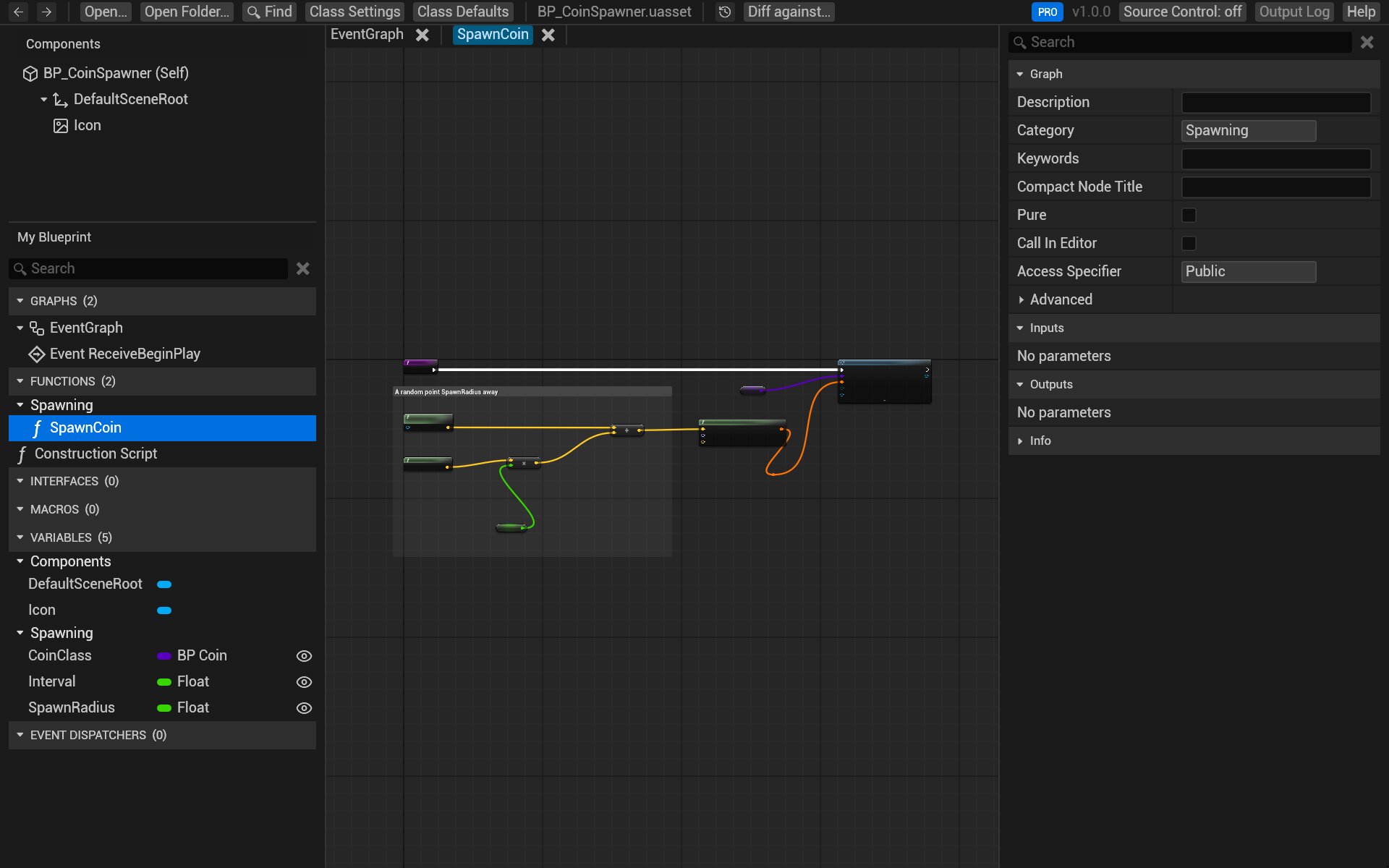
Find your way around a graph
| To | Do |
|---|---|
| Pan | Drag with the right mouse button, or with the left button on a node |
| Zoom | Mouse wheel. Hold Ctrl to zoom in past 1:1, as in the editor |
| Fit the graph to the window | F or Home, with the pointer over the graph |
| Select nodes | Click; Shift+click adds, Ctrl+click toggles; drag on empty space draws a box |
| Open what a node calls | Double-click it: a function call opens the function, a macro its graph, a collapsed node its graph |
| Go back | Alt+Left, the back mouse button, or the ← arrow at the top left |
The panels
- Components lists the components the Blueprint adds, as a tree. Click one to see its properties in Details. The top row, (Self), shows the class defaults.
- My Blueprint lists the graphs, functions, macros, variables and event dispatchers, by category. Click a variable or function to see it in Details; double-click a graph or function to open it.
- Details shows what's selected: a variable's type, flags and default, a function's inputs and outputs, a node's pins and properties, or a component's properties.
- Class Defaults and Class Settings at the top show the Blueprint's defaults (with the values it inherits, dimmed) and its class settings (parent class, interfaces, options).
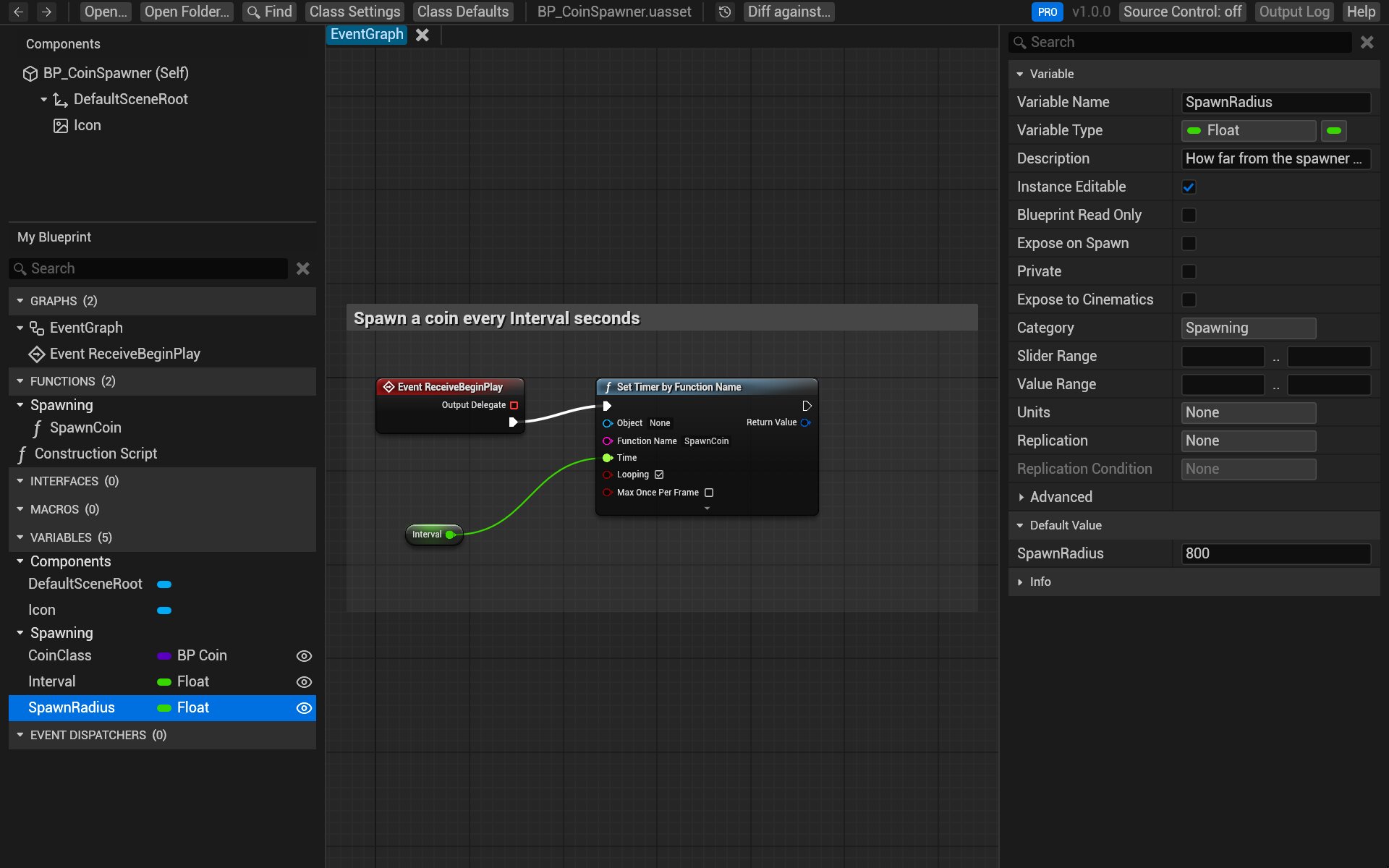
In Class Defaults, the pencil button next to the search box shows only the properties the Blueprint changes.
Enums, structs and data tables
These open as a table: an enum's entries, a struct's fields with their types and defaults, or a data table's rows, one column per field.
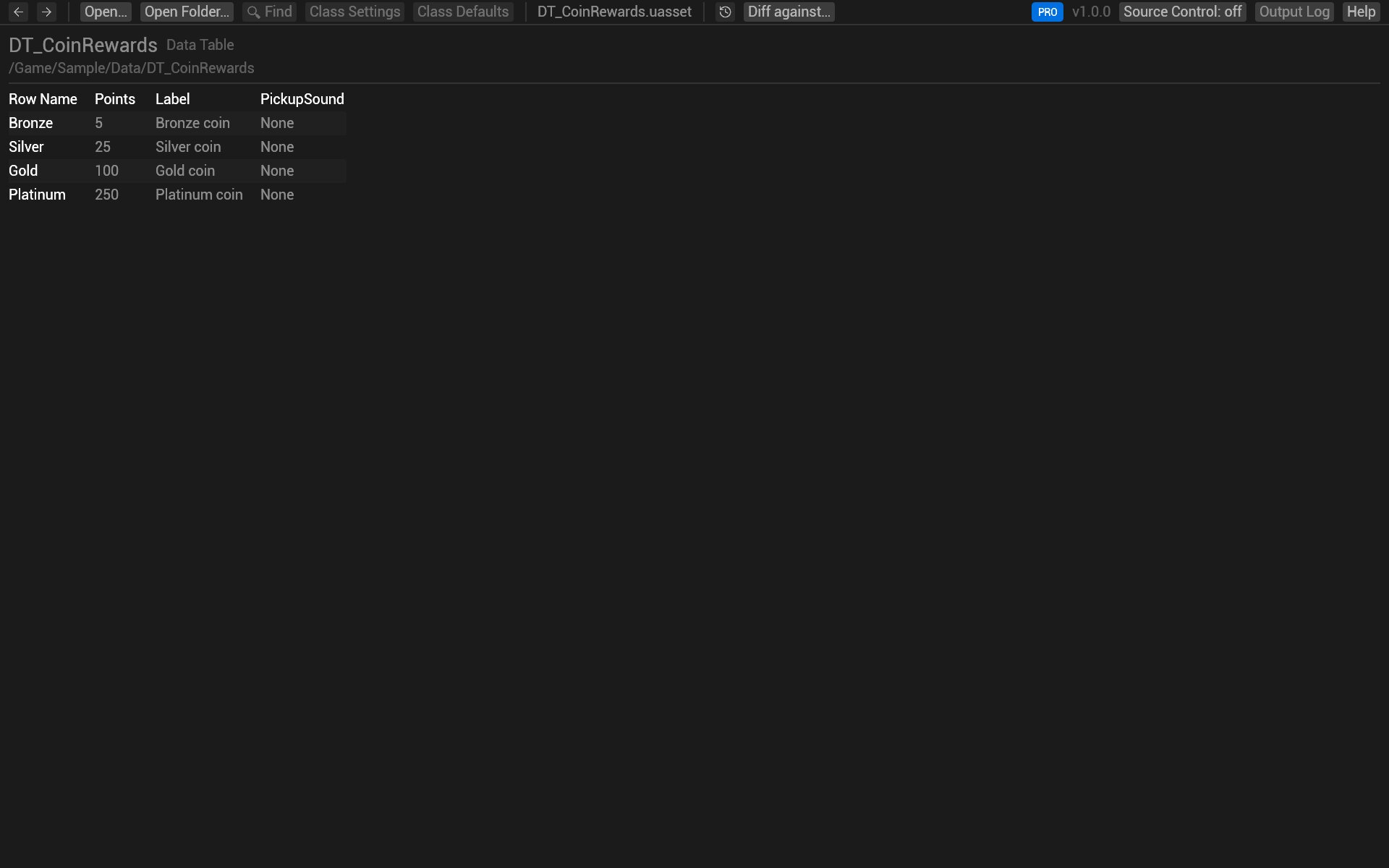
Open a whole project
- Click Open Folder… and pick the project's
Contentfolder (or any folder of assets). - The Explorer on the left lists every asset, as folders. Type in Filter assets to narrow it.
- Click an asset to open it. Each opens in a tab at the top; click a tab to go back to it.
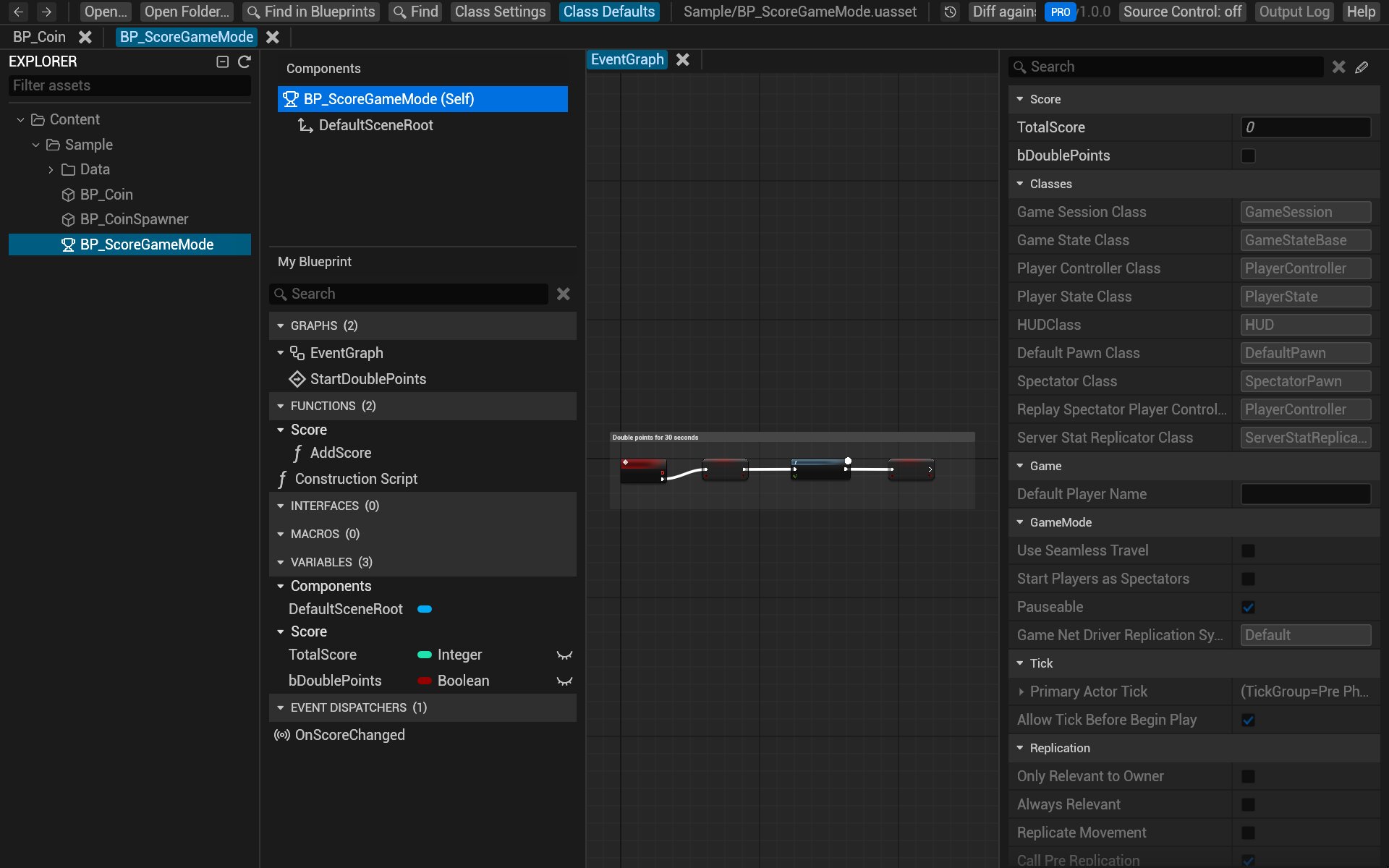
With a folder open, BlueprintReview also finds what one asset uses in another:
- Double-click a call to a function of another Blueprint (a parent class, a game mode, a function library) and that Blueprint opens at the function.
- A Blueprint's parent classes, enums and structs are read from the folder, so inherited defaults and enum names show.
- Find in Blueprints searches every asset in it: see Search.
Ctrl+Shift+E shows or hides the Explorer.
Larger or smaller text
Ctrl+= and Ctrl+- make everything larger or smaller, and Ctrl+0 resets it; Ctrl+scroll over the panels does the same. Click the version number at the top right for the same buttons. The scale is kept for next time.
Try it on the sample
- Click Open Folder… and pick
sample-project/Content. - In the Explorer, open
Sample, then click BP_CoinSpawner. - In My Blueprint, double-click SpawnCoin: the function opens in a tab.
- Click SpawnRadius under Variables: Details shows it is a Float, instance editable, in the Spawning category, with a default of 800.
- Click BP_Coin in the Explorer, then double-click the Score Coin node in its event graph: the
ScoreCoinfunction opens. Press Alt+Left to go back.
Related
- Search a Blueprint or a project.
- Copy nodes into the editor.
- Keyboard and mouse: every shortcut.